NastyThermostat.cc
💡 Required browser: Google Chrome or Microsoft Edge. Firefox and Safari do not support the Web Serial API.

Part 1 — Installing the Firmware

STEP 01

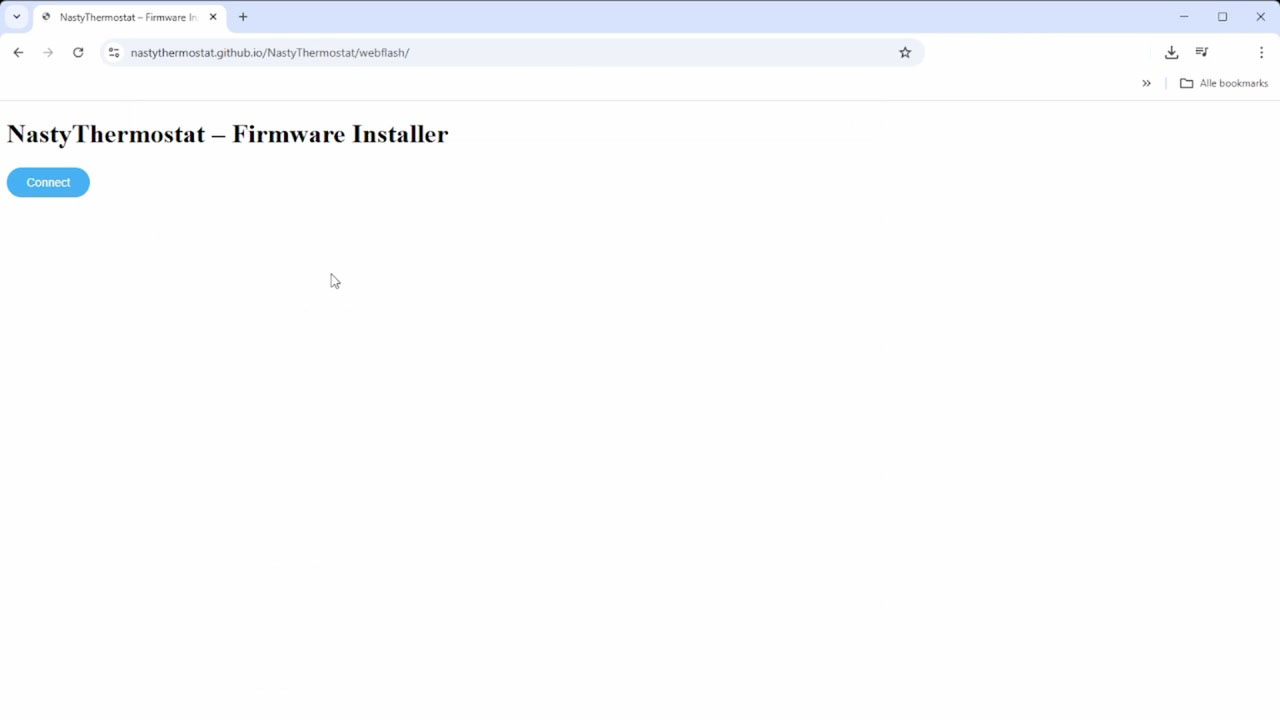
Open the webflasher

Connect the NastyThermostat to your computer via USB. Then open Chrome or Edge and go to:

https://nastythermostat.cc/webflash

Click the Connect button.

Webflasher — Connect button
STEP 02

Select the device

A pop-up appears with available serial ports. Select the port of the ESP32-C6 (usually "USB Serial" or "CP210x") and click Connect.

STEP 03

Confirm the installation

The webflasher automatically detects the device and shows a confirmation dialog: "Confirm Installation — Do you want to install NastyThermostat Firmware v1.0.0?". Click Install.
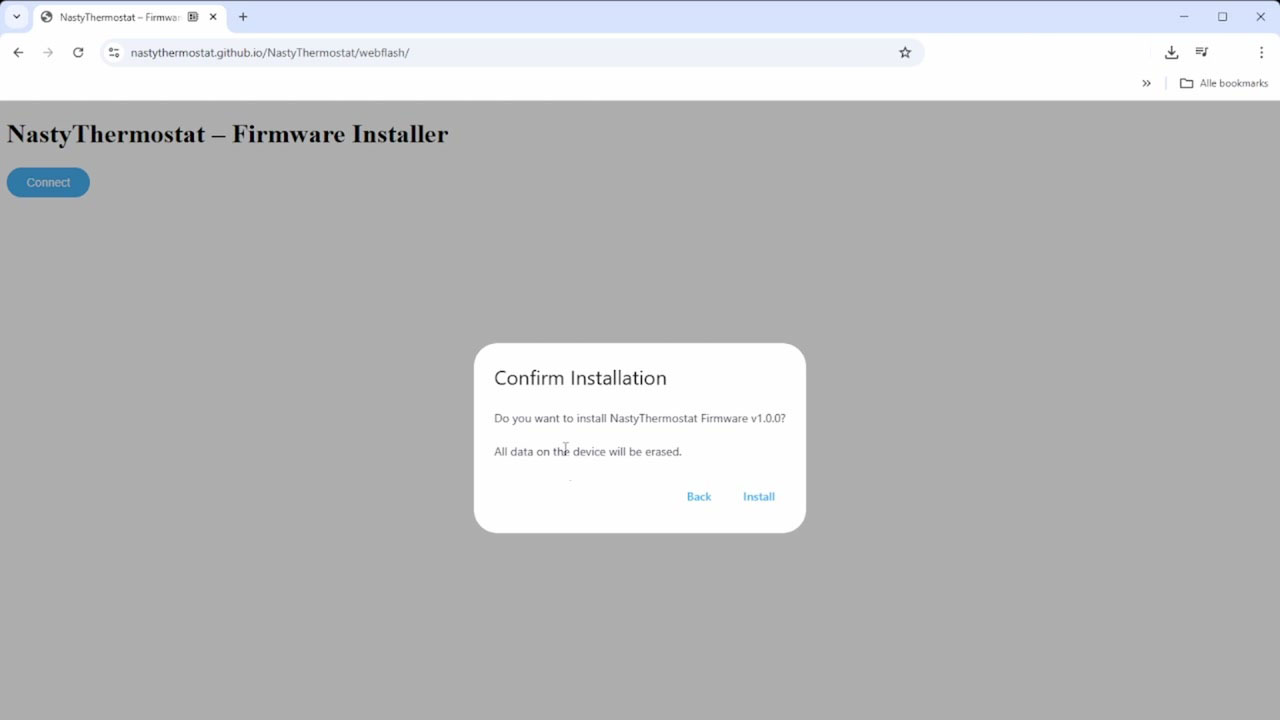
Confirm Installation dialog
STEP 04

Wait for the installation

The firmware is now being written to the device. This takes approximately 1–2 minutes. Keep the browser page visible — this prevents slowdown.
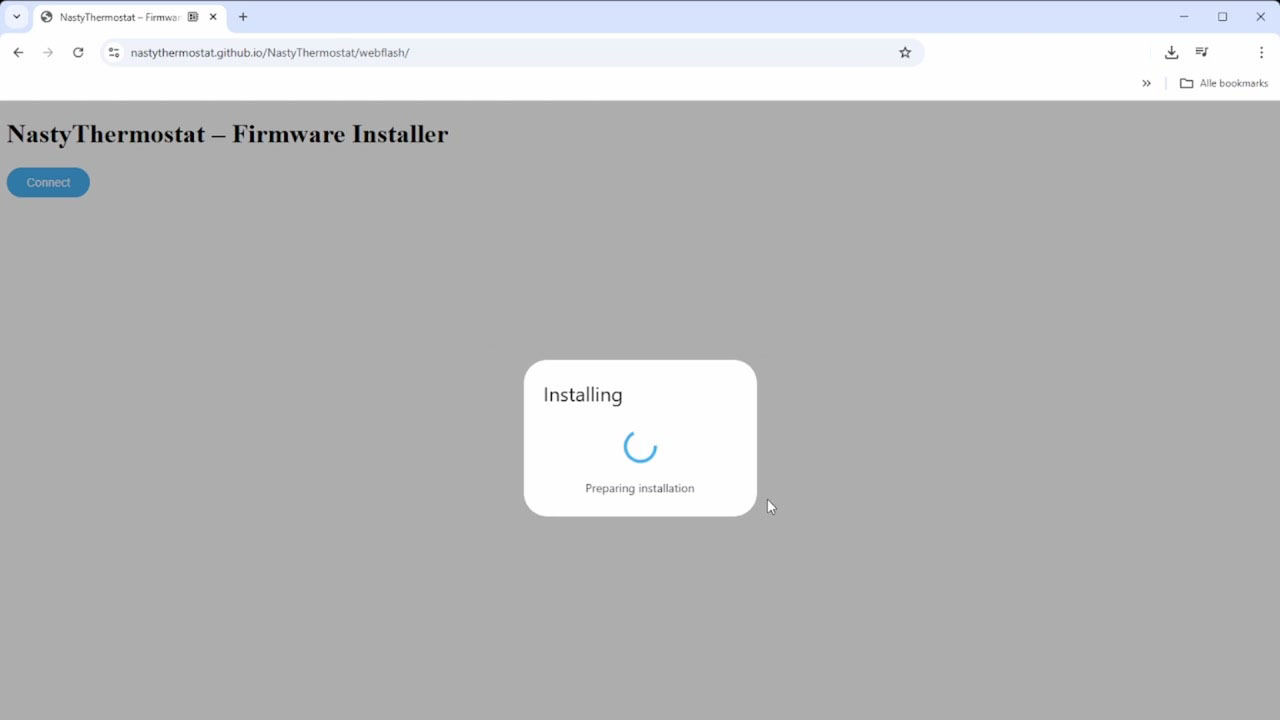
Installing firmware
Do not disconnect the USB during installation.
STEP 05

Installation complete

Afterwards the menu appears with two options: "Install NastyThermostat Firmware" and "Logs & Console". Click Logs & Console to verify the device booted correctly.
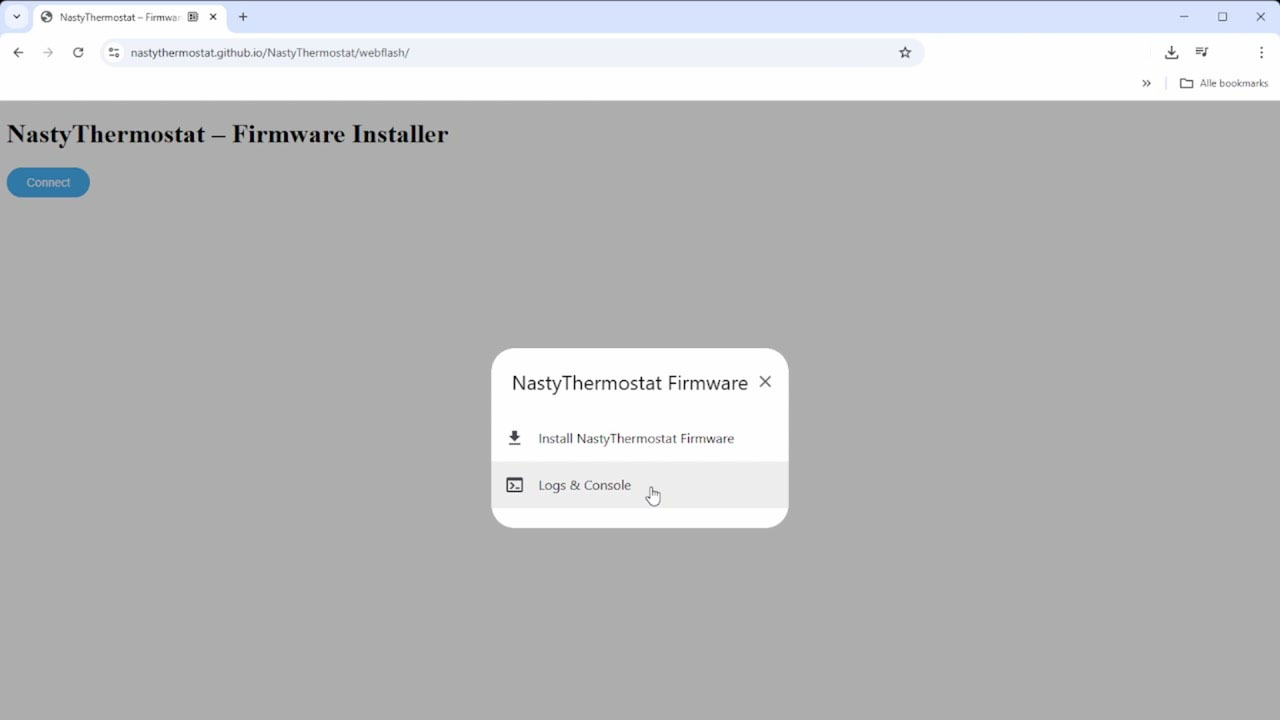
Post-install menu
STEP 06

Check the logs

The logs show the boot messages of the ESP32. At the bottom "Starting Web Portal" appears — this means the NastyThermostat has created its own WiFi network for configuration.
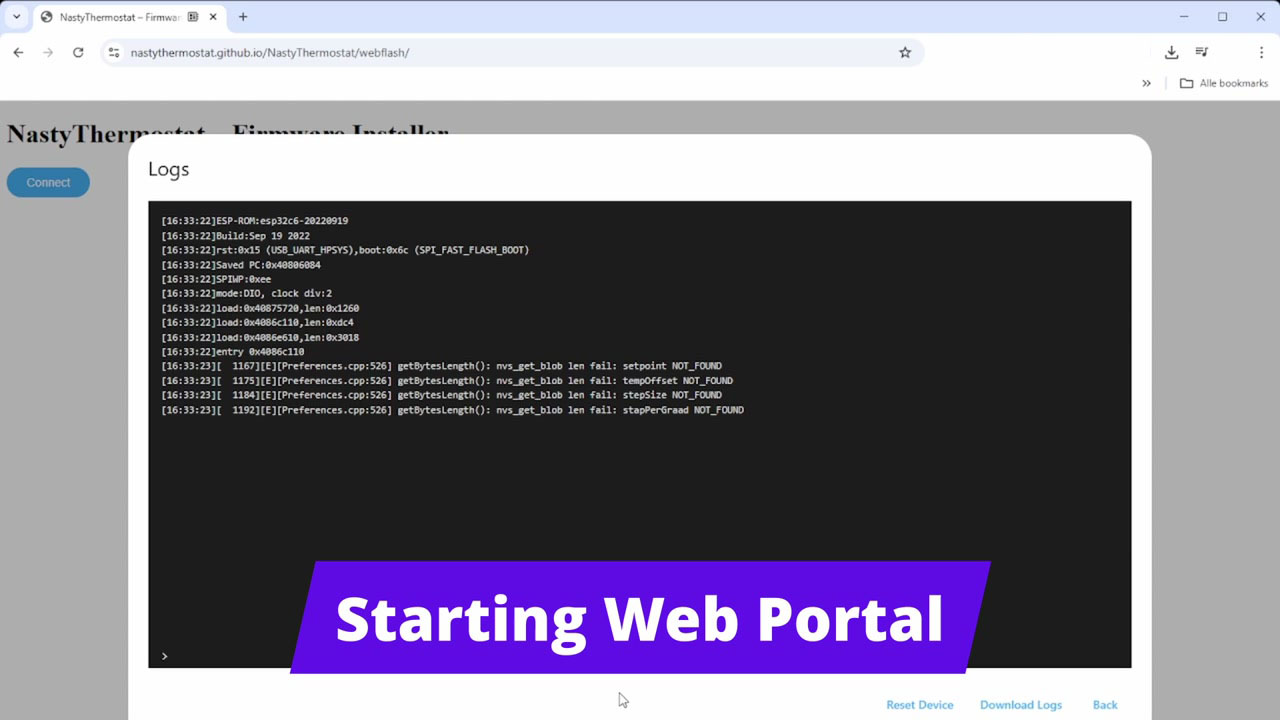
Boot logs — Starting Web Portal

Part 2 — Configuring WiFi

STEP 07

Connect to the NastyThermostat network

Open the WiFi settings on your computer or phone. You will see a network appear named "NastyThermostatE08898" (the last digits are the MAC address of your device). Click Connect.
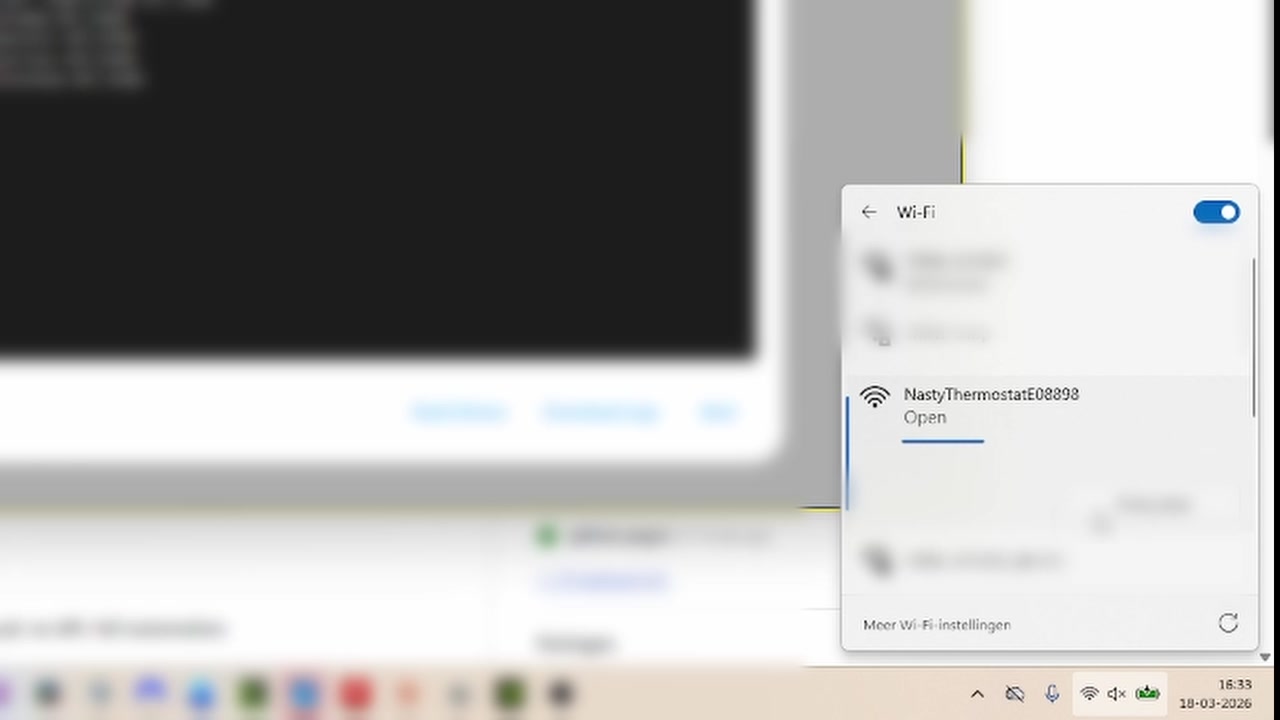
WiFi network appearing
💡 The network has no password and no internet access — this is normal.
STEP 08

Open the configuration portal

Windows automatically shows a notification "Action required, no internet" with the button "Open browser and connect". Click this, or navigate manually to 192.168.4.1 in your browser.

You now see the WiFiManager portal of the NastyThermostat. Click Configure WiFi to continue.
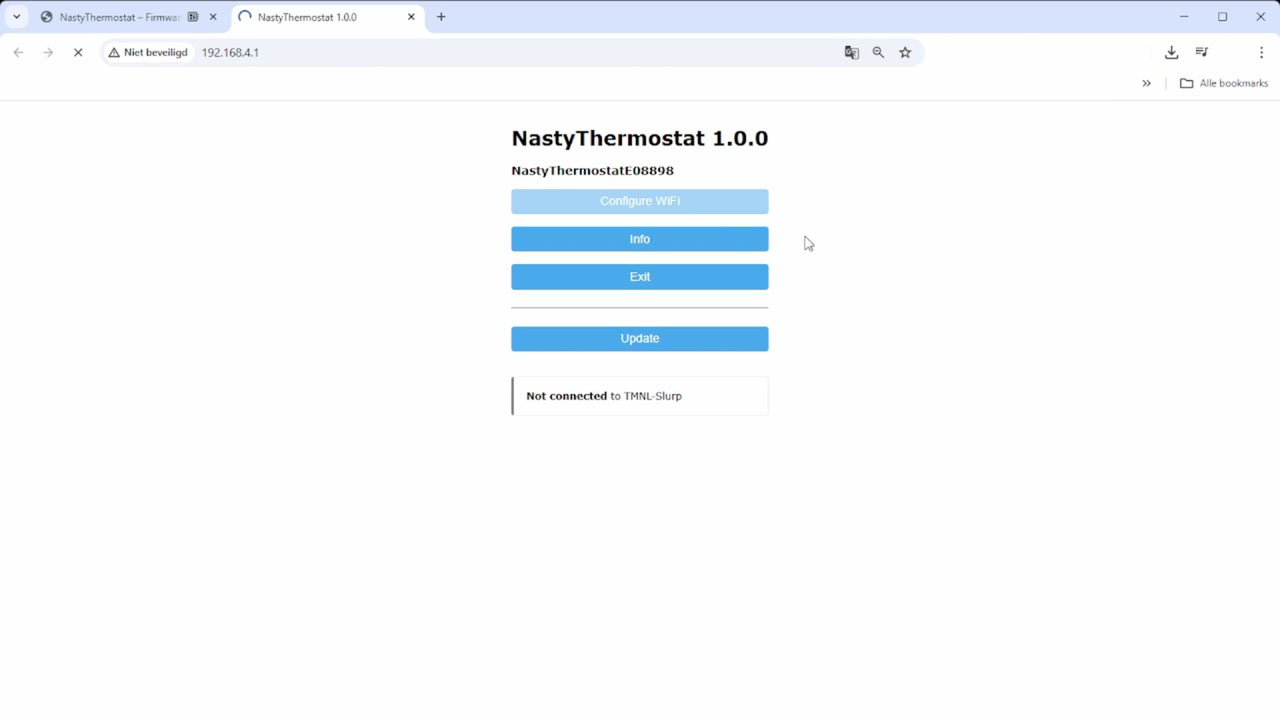
WiFiManager portal

Part 3 — Configuring Settings

STEP 09

WiFi and basic MQTT settings

The configuration page shows a list of available WiFi networks at the top. Below is a description of all fields:
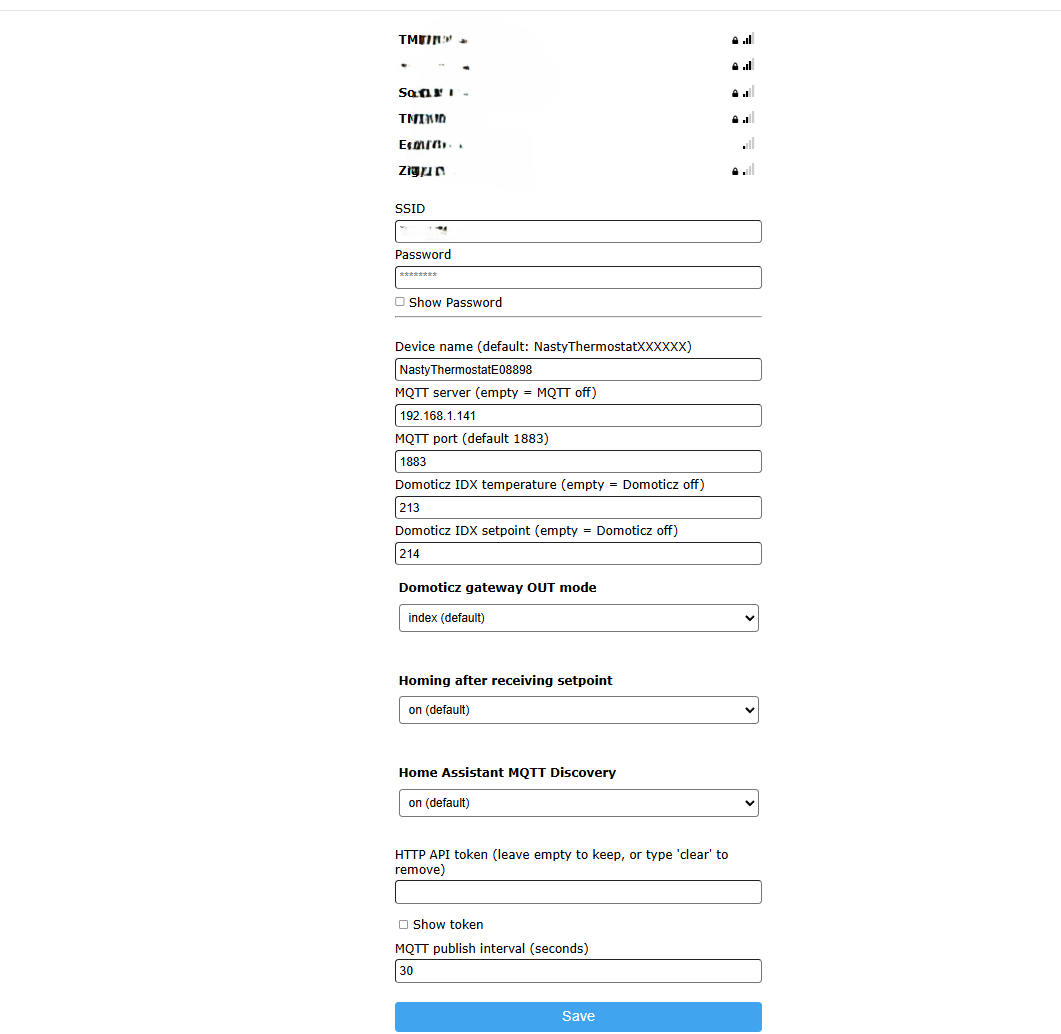
Configuration page
SSID / Password
Select your WiFi network from the list and enter the password. The NastyThermostat will connect to it after saving.
Device name
Default: NastyThermostatXXXXXX
The name of the device. XXXXXX represents the last 6 characters of the MAC address. Used as the base for MQTT topics (e.g. NastyThermostatE08898/out/temp) and as the hostname on the network. When using multiple thermostats, each must have a unique name.
MQTT server
Default: Empty = MQTT disabled
IP address or hostname of your MQTT broker (e.g. 192.168.1.141). If this field is empty, no MQTT connection is made and Domoticz and Home Assistant will also not be active.
MQTT port
Default: 1883
Port number of the MQTT broker. Usually 1883 (unencrypted). Only change this if your broker runs on a non-standard port.
Domoticz IDX temperature
Default: Empty = Domoticz disabled
The IDX number of the temperature virtual device in Domoticz. The measured temperature is published to this IDX. Both this and the IDX setpoint must be filled in to activate Domoticz integration.
Domoticz IDX setpoint
Default: Empty = Domoticz disabled
The IDX number of the setpoint virtual device in Domoticz (type Thermostat Setpoint). The NastyThermostat listens on this IDX for setpoint changes from Domoticz, and publishes the current setpoint back.
Domoticz gateway OUT mode
Default: index
Determines the format used when the NastyThermostat publishes to Domoticz.
indexstandard Domoticz JSON format with idx, nvalue, svalue (recommended)
flatsimplified format, only for special Domoticz configurations
Homing after receiving setpoint
Default: on
Determines what happens when a new setpoint is received via MQTT, API or Domoticz.
onthe motor first returns to the zero position (homing) for maximum accuracy, then moves to the new setpoint
offthe motor moves directly to the new setpoint with a short "wake-jiggle" to activate the Nest thermostat (faster, slightly less accurate)
Home Assistant MQTT Discovery
Default: on
Determines whether the NastyThermostat automatically sends an MQTT Discovery message.
onHome Assistant automatically recognises the device as a climate entity (temperature + setpoint visible in HA without manual configuration)
offno automatic HA integration
HTTP API token
Default: Empty = current token unchanged
Security token for the HTTP API (POST requests). Without a token, only GET requests are possible (read-only). Enter a password of your choice to secure write access. Type clear to remove the token and block write access.
MQTT publish interval
Default: 30 seconds
How often the NastyThermostat publishes the temperature and setpoint to MQTT. Minimum 1 second. Lower values result in more network traffic and slightly higher power consumption.
STEP 11

Save

Click the Save button. The NastyThermostat saves the settings and attempts to connect to your WiFi network.
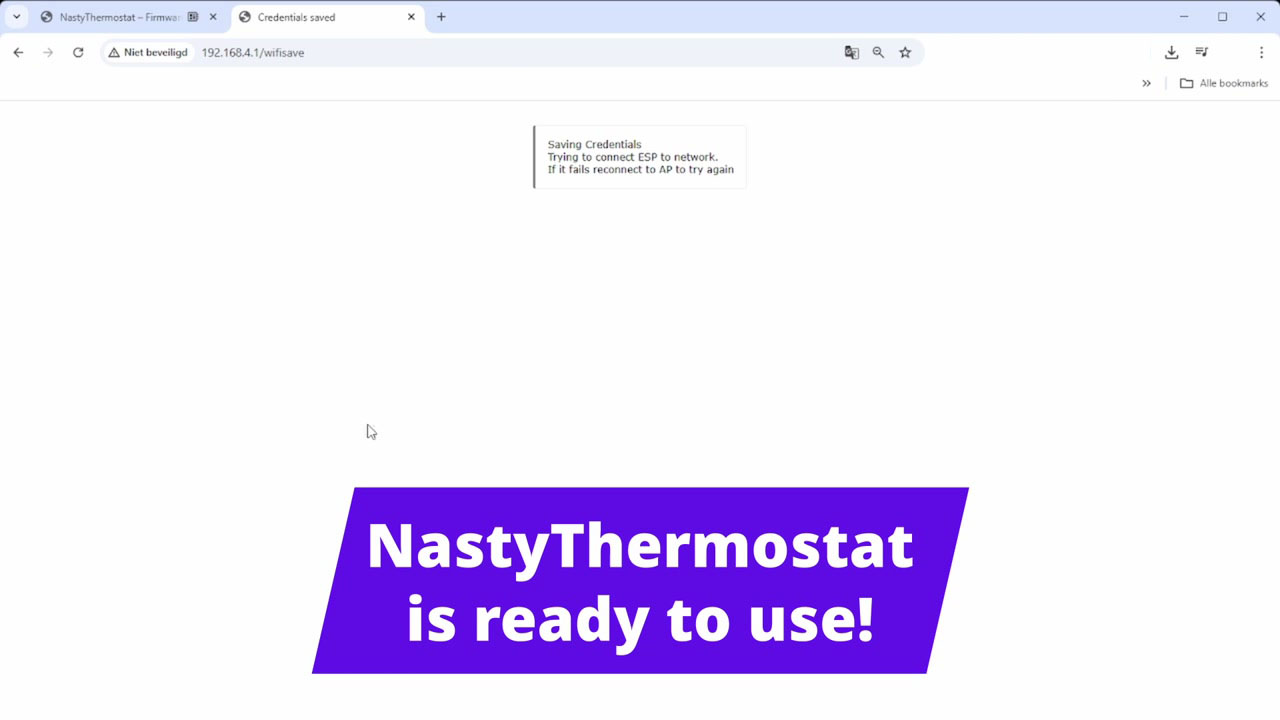
Credentials saved

Your computer disconnects from the NastyThermostat network and the NastyThermostat automatically connects to your own WiFi. The NastyThermostat is now ready to use.

💡 If the connection fails, the NastyThermostat network reappears and you can re-enter the settings.